Finding stops, search, and favourites
Use the Stops tab to find nearby stops, search by place or bus number, and save favourites.
The Stops tab shows your local bus, rail, and tube stops on a map. Move the map to reveal stops elsewhere, and get quick access to recent and favourite stops.
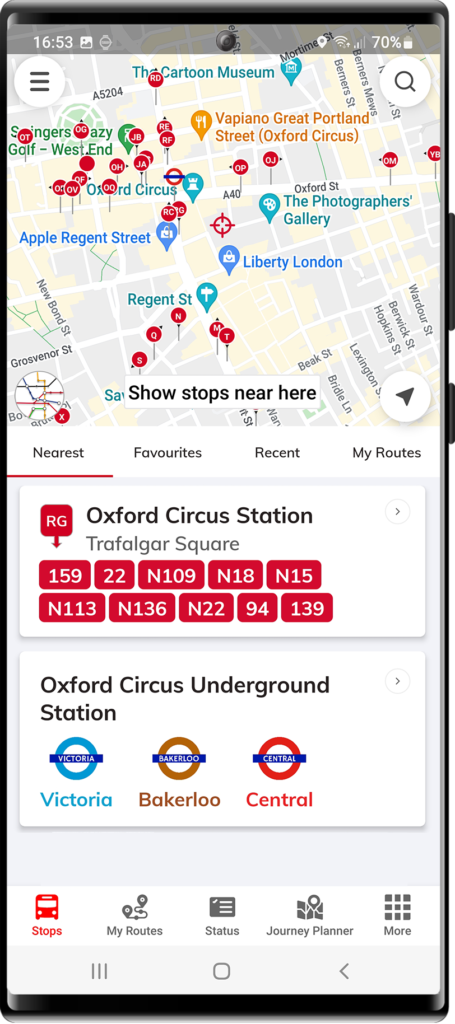
Tips: pull the menu down to show more of the map, and pinch to zoom in and out.
On the map you'll find quick buttons to centre on your location  , search
  , and open the Tube map
  .
.
Search
Tap the magnifying glass at the top right of the map. You can search by:
- Place name (landmarks, local businesses)
- Bus stop name
- Bus number
Results are grouped by type — transport (bus stops, underground stations) and places.
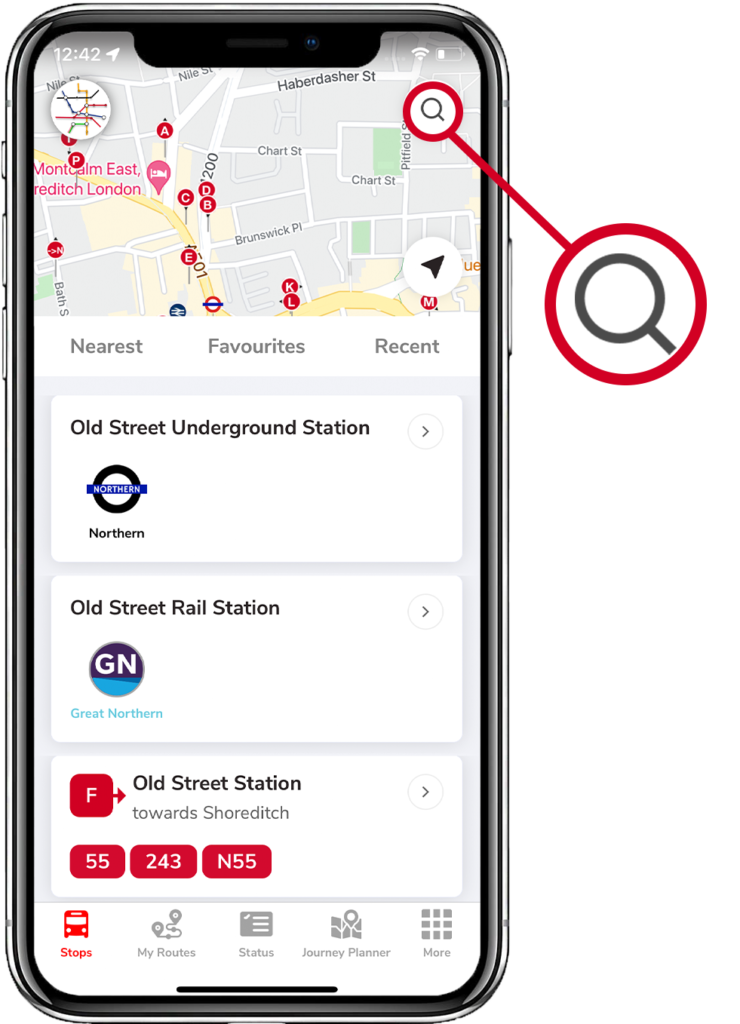
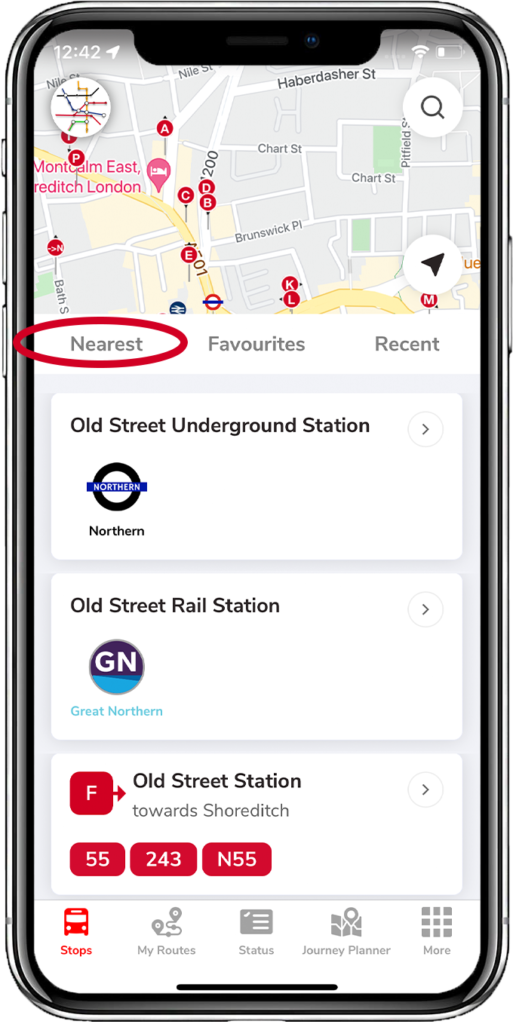
Nearest
Shows your closest bus stops and train/tube stations, the direction they head, and the bus numbers. Location services must be enabled.
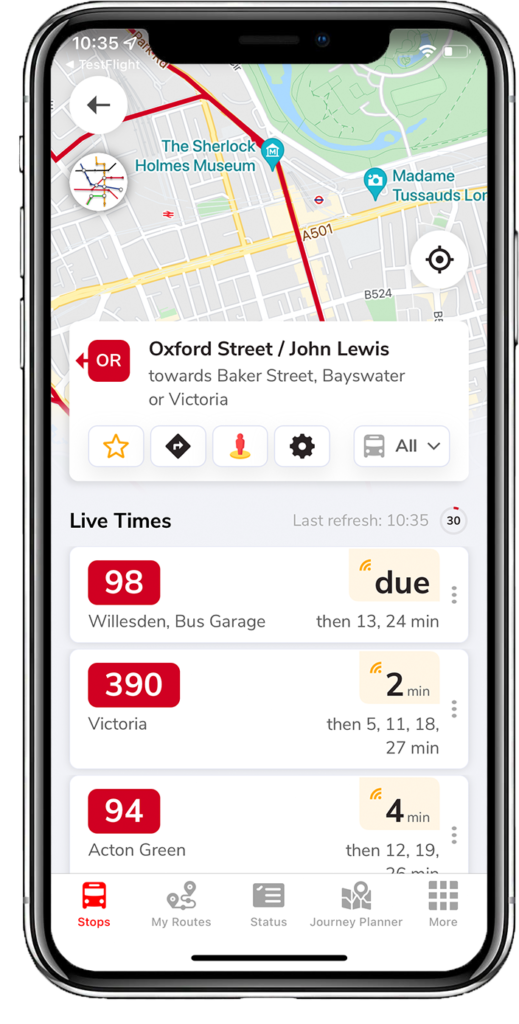
Tap a stop to see the buses that use it and the minutes until each is due. Tap a bus number to see its registration, a map of the route, and the time to each stop along it.
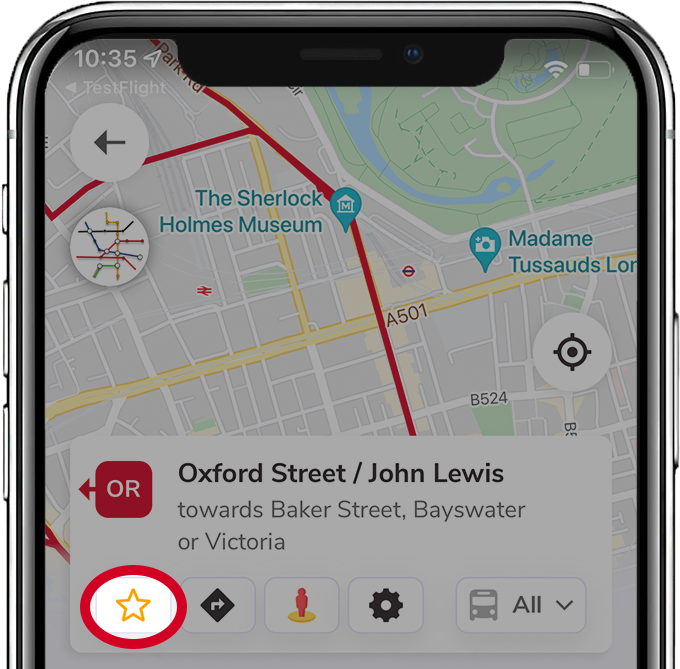
From a stop you can:
 Favourite it (star button)
 Plan a journey to it from your location (arrow button)
 Open Google Street View (person icon)
 Open settings (cog) to switch between combined or individual bus times
 Filter to all buses or a single route
The bottom of the screen has full timetables — tap a bus number to open its timetable. You can also tap Tell TfL to send feedback to TfL.
Favourites
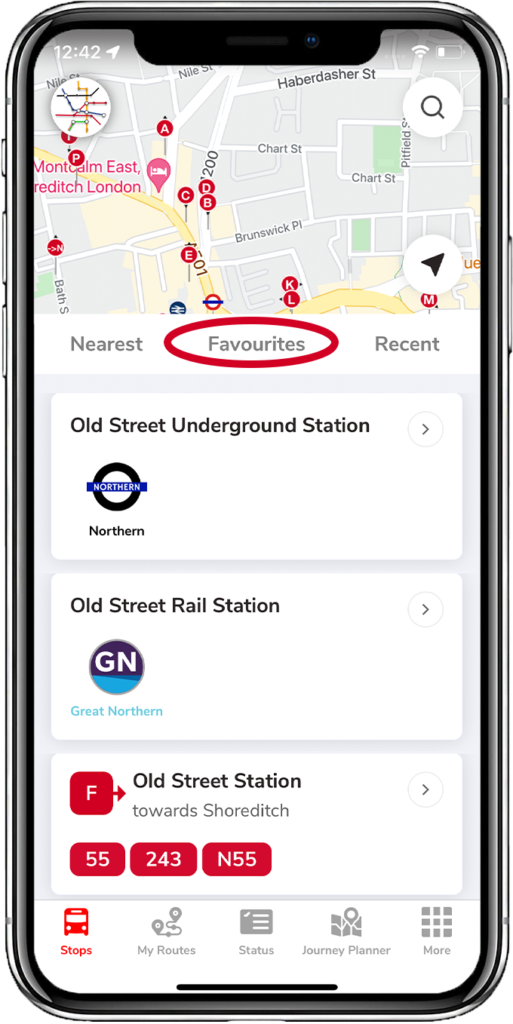
Any stop you star appears in Favourites. An outlined star means it's not saved; a filled star means it is. Tap the star again to remove it.
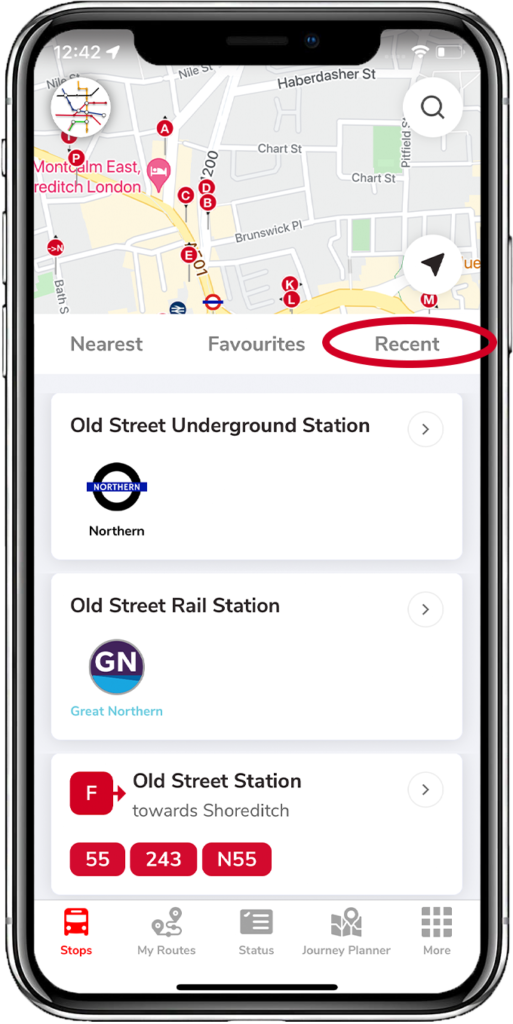
Recent
Shows stops you've used recently with the date and time. Tap the arrow on the right to jump back to a live-times view of that stop.

For stops away from your current location, see Checking stops in other locations.
Related articles
My Routes — saving and ordering favourite stops
Save the stops you use most, reorder them, and switch between combined or individual bus times.
Planning a journey
Plan A-to-B journeys, set home and work, filter by accessibility, and see a step-by-step breakdown.
Service status, Oyster, and travel info
Check line status across tube, rail, tram and river, view your Oyster balance, and find top-up locations.
The More tab — settings & extra features
Region, Santander Cycles, traffic cams, Track my Bus, Tube Map, night mode, and all the display settings.
Didn’t answer your question?
Contact support