The More tab — settings & extra features
Region, Santander Cycles, traffic cams, Track my Bus, Tube Map, night mode, and all the display settings.
The More tab holds settings, feedback, and a few hidden features.
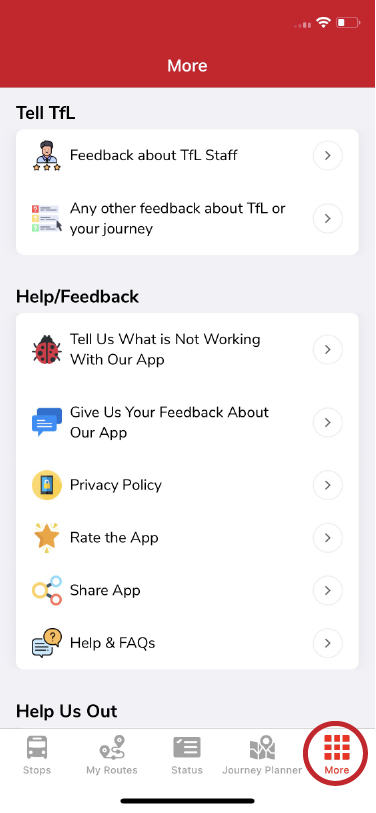
Features
- Your region — choose your city/region.
- Favourite Timetable — routes you've marked favourite.
- Santander Cycles — nearby cycle hire docks on a map; star to favourite.
- Status Updates — jump to the Status tab.
- Traffic Cams — nearby traffic cameras with live views; star to favourite.
- View Bus Route Disruptions / Check Road Disruptions / Plan your Journey — open the relevant TfL pages.
- Track my Bus — enter a bus's registration (shown on the Stops page) to track its location.
- Tube Map — our pinch-to-zoom version of the TfL map.
Feedback
- Feedback about TfL staff / service — opens TfL's Contact us page.
- Having an issue with the app / suggestion — email us directly. See Contact us.
- Rate the App and Share App — review us or share with friends.
Display settings
Toggle Night Mode (darker, easier on the eyes), show/hide the map, satellite map, 3D map, timetables, clock arrival time, individual vs grouped times, and journey start/end times. Use Device Settings follows your phone's appearance. Check for Updates keeps the app current.
Ads & purchases
- Remove Ads — an optional yearly subscription. See Remove Ads subscription.
- Restore Purchase — restore a previous ad-free purchase on a new device.
- Ads Personalisation — manage your ad consent. See Personal data & ads.
Related articles
Finding stops, search, and favourites
Use the Stops tab to find nearby stops, search by place or bus number, and save favourites.
My Routes — saving and ordering favourite stops
Save the stops you use most, reorder them, and switch between combined or individual bus times.
Planning a journey
Plan A-to-B journeys, set home and work, filter by accessibility, and see a step-by-step breakdown.
Service status, Oyster, and travel info
Check line status across tube, rail, tram and river, view your Oyster balance, and find top-up locations.
Didn’t answer your question?
Contact support