Planning a journey
Plan A-to-B journeys, set home and work, filter by accessibility, and see a step-by-step breakdown.
The Journey Planner tab plans a trip from a start to an end point and breaks every step down for you.
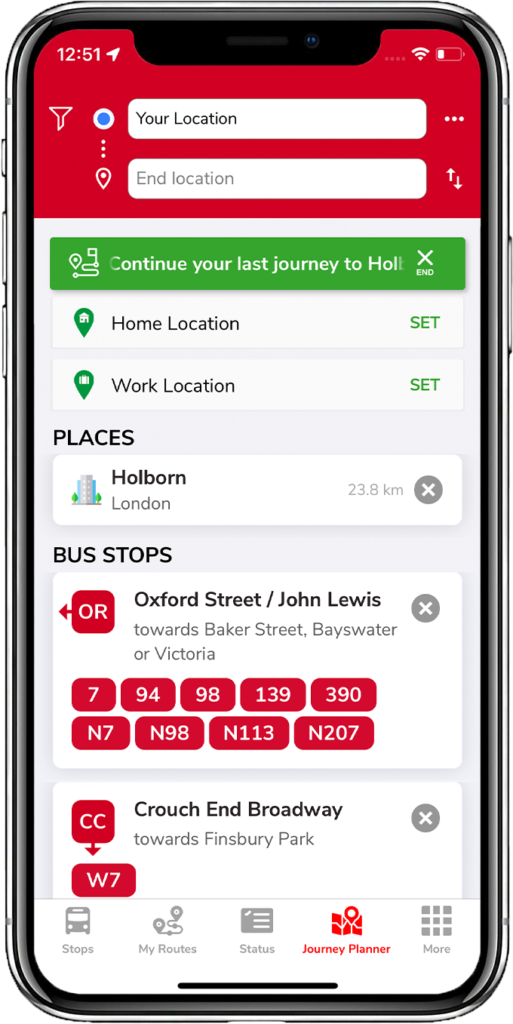
Home & work locations
Tap Set next to Home or Work and choose your current location or pick a spot on the map. Then you can plan to either in one tap.
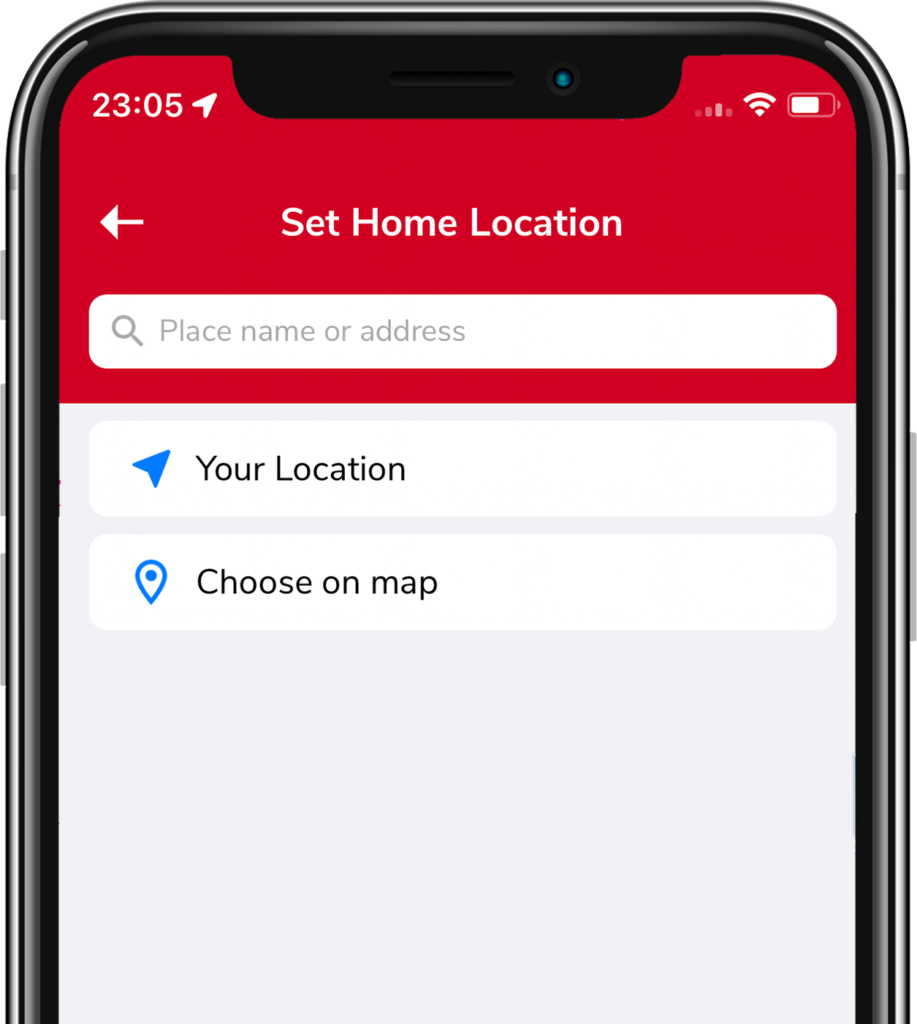
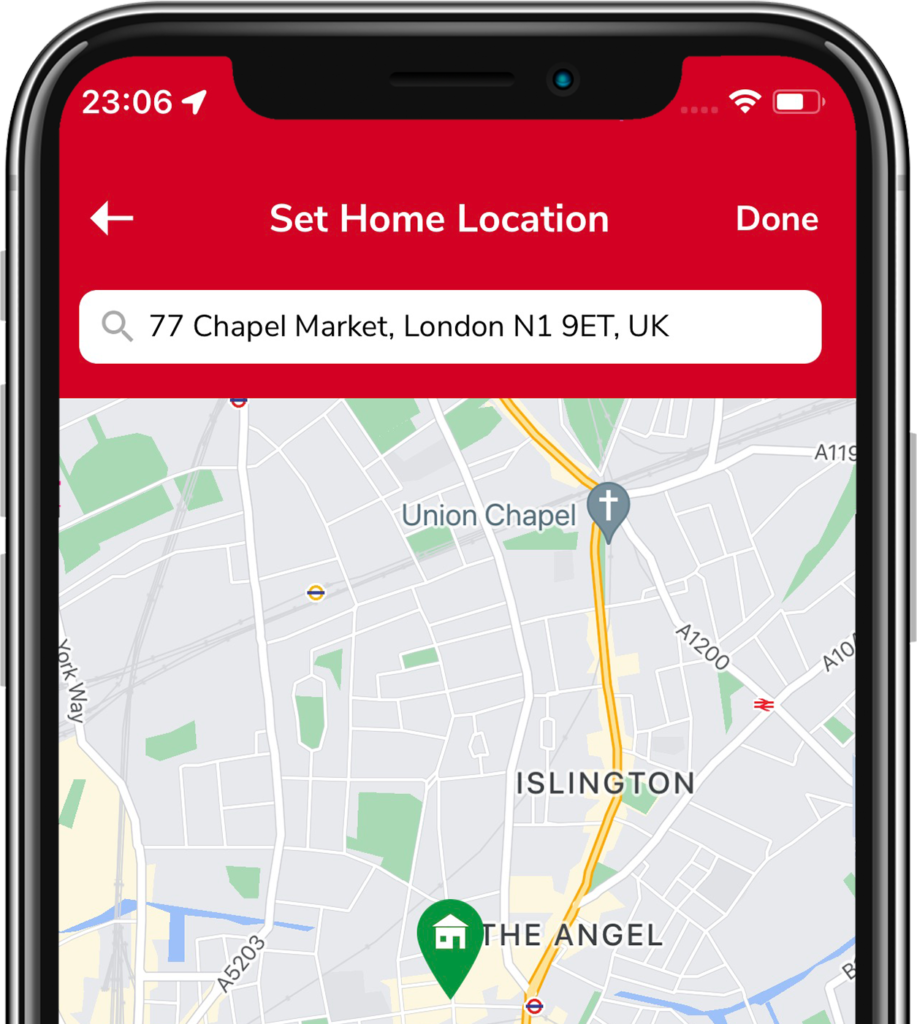
Quick journey
Type your destination in the end location bar and pick from the results (or your recent searches). A list of routes appears.
Planning a journey
Enter a start (if different from your current location) and a destination. The app offers:
- Suggested — the fastest routes
- Bus only — routes using buses only
Any filters you set also shape the results — accessibility, fewest changes, and how much walking you prefer.
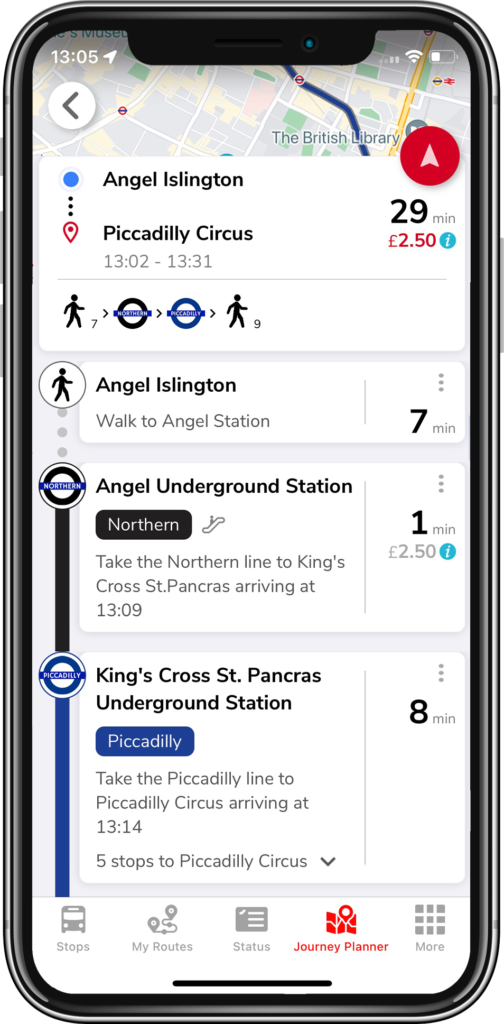
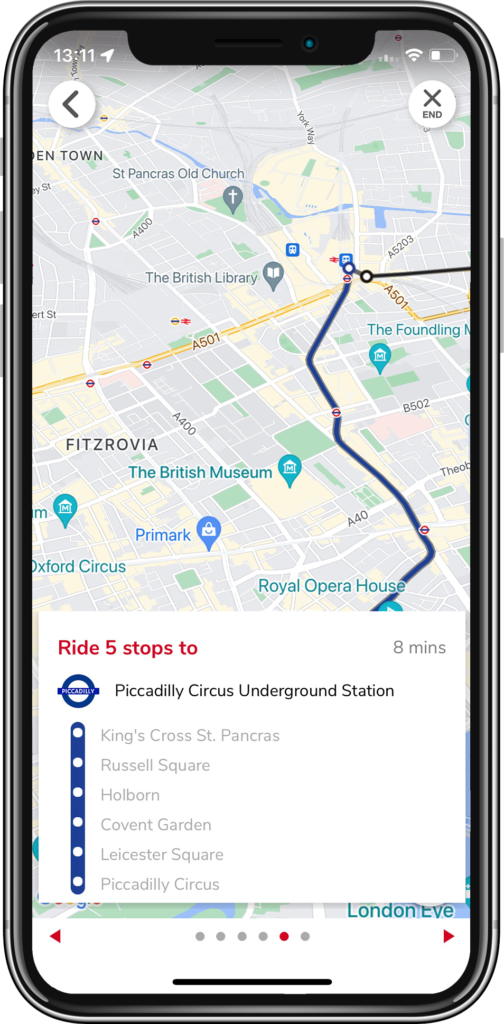
Pick a route to open the breakdown screen, with the time and cost of each step. Tap any step to see it on the map; tap the red arrow for a detailed, swipeable map view.
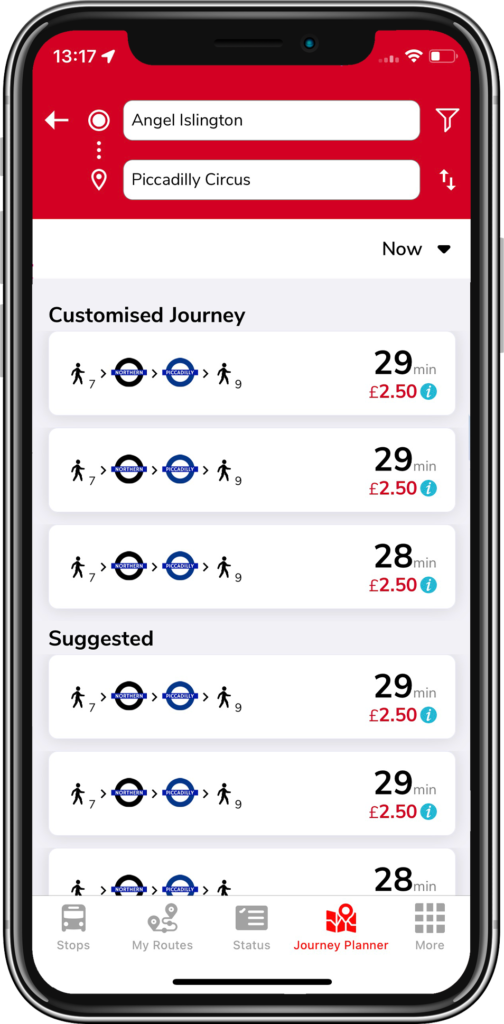
On-screen controls
 Preferences — filter travel methods and accessibility options, then Save.
 Three horizontal dots — Journey Schedule: change the departure date/time to pre-plan trips (scroll the wheel).
 Up/down arrows — reverse start and end, e.g. to check your trip home.
 Three vertical dots (per step) — close-up map view or Google Street View for that step.
Related articles
Finding stops, search, and favourites
Use the Stops tab to find nearby stops, search by place or bus number, and save favourites.
My Routes — saving and ordering favourite stops
Save the stops you use most, reorder them, and switch between combined or individual bus times.
Service status, Oyster, and travel info
Check line status across tube, rail, tram and river, view your Oyster balance, and find top-up locations.
The More tab — settings & extra features
Region, Santander Cycles, traffic cams, Track my Bus, Tube Map, night mode, and all the display settings.
Didn’t answer your question?
Contact support