My Routes — saving and ordering favourite stops
Save the stops you use most, reorder them, and switch between combined or individual bus times.
The My Routes tab is where your favourite routes live, so your most-used stops are one tap away.
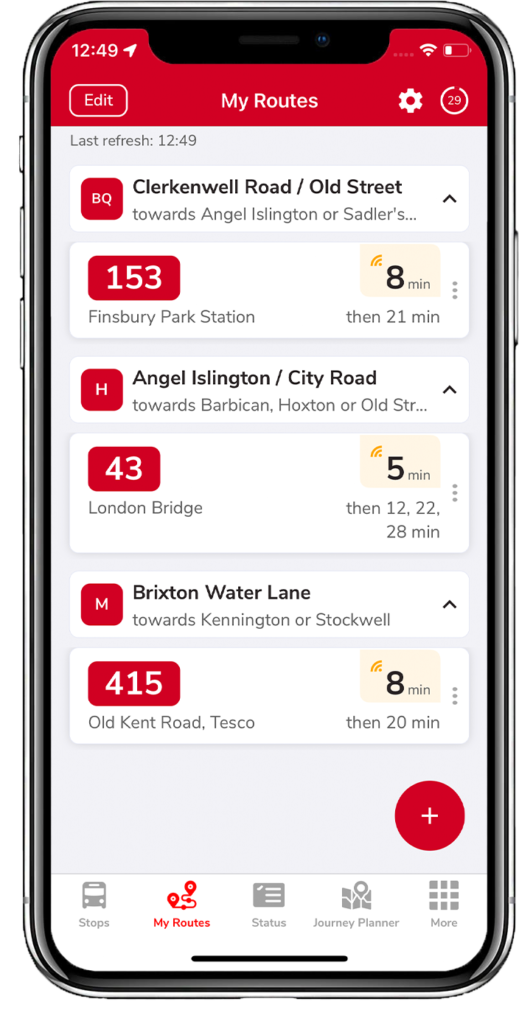
Add a route
Tap the big  + button at the bottom right. Find a stop by:
- bus stop name
- bus stop code
- road name (then pick from the list)
Tap the slider on the right — it turns red and the stop is added.

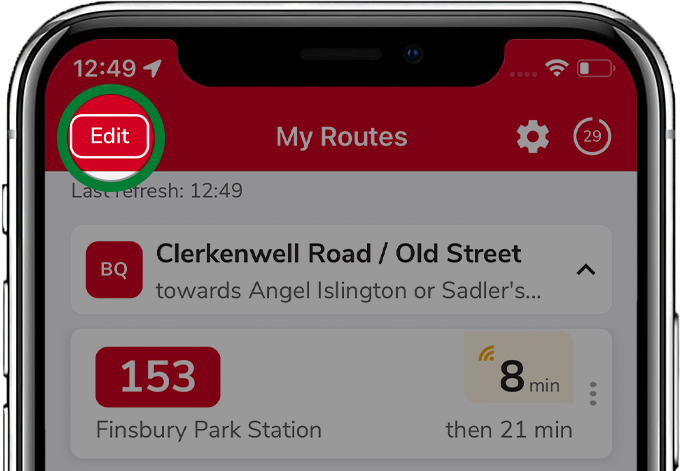
Remove a route
Tap Edit at the top left, then tap the bin icon (or the red circle, then Delete to confirm).
See live times
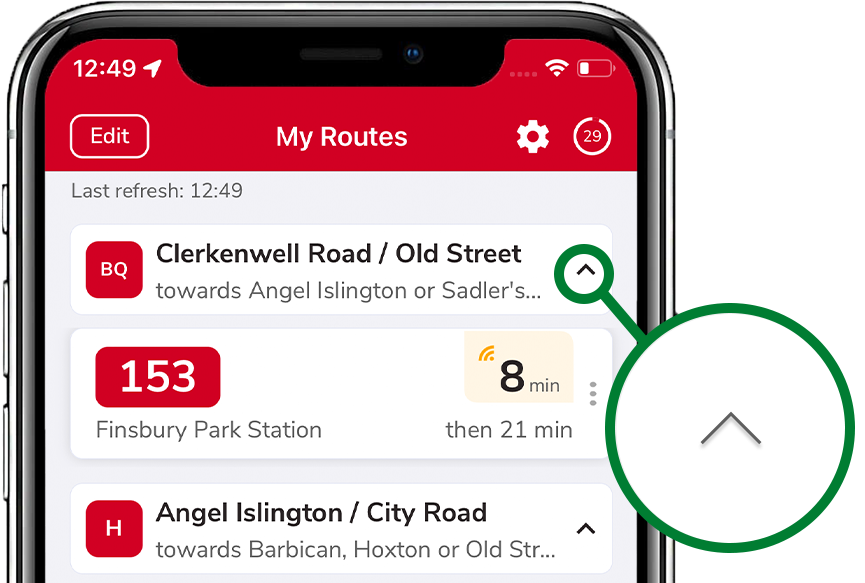
Tap the dropdown arrow on a stop's name to see how long until the next bus. Tap a bus number to view the journey and the bus's registration. The three vertical dots open a quick menu to view the journey, see the timetable, or remove the route.
Choose your layout
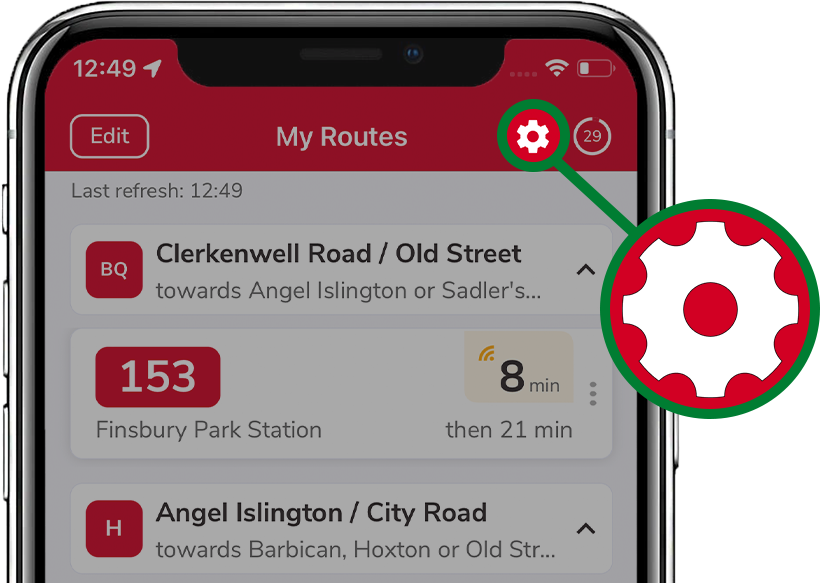
Tap the cog at the top right to switch between combined bus times (the next few buses grouped together) and individual buses (each one listed separately).
Reorder
Use the three lines (or the up/down arrows) to drag routes into the order you want, so your most-used stops sit at the top.

Related articles
Finding stops, search, and favourites
Use the Stops tab to find nearby stops, search by place or bus number, and save favourites.
Planning a journey
Plan A-to-B journeys, set home and work, filter by accessibility, and see a step-by-step breakdown.
Service status, Oyster, and travel info
Check line status across tube, rail, tram and river, view your Oyster balance, and find top-up locations.
The More tab — settings & extra features
Region, Santander Cycles, traffic cams, Track my Bus, Tube Map, night mode, and all the display settings.
Didn’t answer your question?
Contact support